
Review infrastructure changes as an application dependency
Este artigo ainda não foi traduzido — está a ver a versão em inglês.
You are building a deployment pipeline where the application cannot start until the database is ready. The infrastructure team updates the schema, and the application deployment fails because it tried to connect before the migration finished. The issue is rarely the infrastructure itself; it is usually how the dependency is declared in the deployment template.
The most reliable way to handle this is to treat infrastructure as a module and the application as the consumer. This approach makes the dependency explicit in the deployment graph, allowing Azure Resource Manager to manage the order and scope correctly. It also keeps the application template clean and focused on its own configuration.
Why modules clarify dependencies
Bicep modules allow you to encapsulate infrastructure definitions into separate files. When you reference a module, you are not just importing code; you are creating a deployment unit that Azure Resource Manager treats as a single resource. This distinction is critical for managing dependencies.
If you define resources directly in the main template, you might use implicit dependencies by referencing properties. For example, if a web app needs the connection string from a storage account, you might reference storageAccount.outputs.primaryConnectionString. This creates an implicit dependency because the web app cannot be deployed until the storage account module has output that value. However, if the infrastructure changes are in a separate file that is not referenced by the application, there is no dependency at all. The application might deploy before the infrastructure is ready, or the infrastructure might update without triggering a re-evaluation of the application.
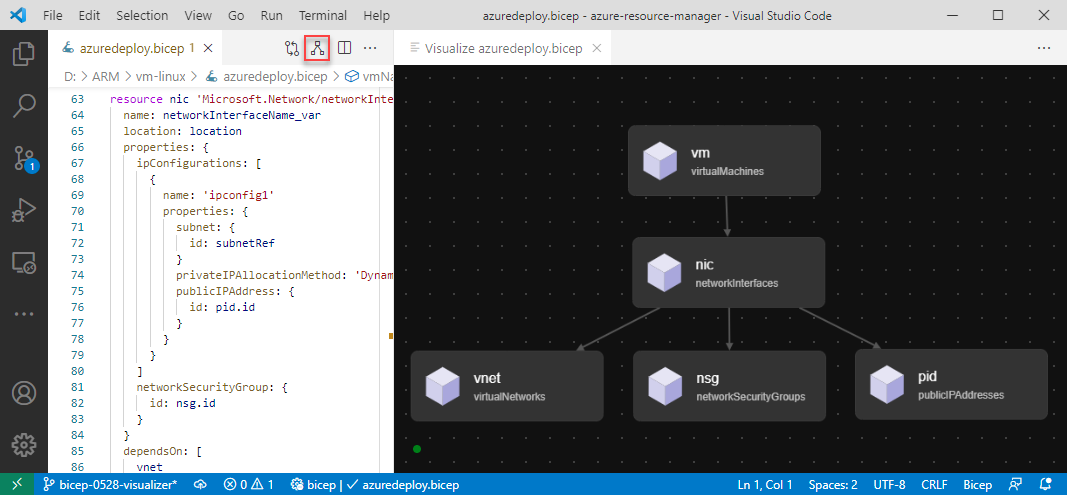
By using modules, you force a relationship. The application template must explicitly include the infrastructure module or reference its outputs. This makes the dependency visible in the deployment graph. You can also use the Bicep resource visualizer to see these relationships. The visualizer shows how resources are connected, helping you identify potential bottlenecks or missing links.
Setting the correct scope
One of the most common mistakes is assuming that a module inherits the scope of the main template. If your main template is deployed to a subscription, but the infrastructure module needs to be deployed to a specific resource group, you must explicitly set the scope. Failure to do so can lead to resources being created in the wrong location or permissions errors.
Consider a scenario where you have a main template that deploys to a subscription, but you want to create a storage account in a specific resource group. You can define the resource group as a resource in the main template and then pass it to the module.
targetScope = 'subscription'

param namePrefix string

resource demoRG 'Microsoft.Resources/resourceGroups@2025-04-01' = {
  name: '${namePrefix}rg'
  location: deployment().location
}

module stgModule '../storageAccount.bicep' = {
  name: 'storageDeploy'
  scope: demoRG
  params: {
    storagePrefix: namePrefix
  }
}
In this example, the scope property ensures that the storage account is created in the demoRG resource group, even though the main template is deployed at the subscription level. This is a crucial step for managing infrastructure changes that are scoped to specific resource groups.
Managing versioning and reuse
When infrastructure changes frequently, you need a way to manage versions of your modules. Bicep supports referencing modules from a registry, which allows you to version your infrastructure code independently of your application code. This is particularly useful when you have multiple applications that depend on the same infrastructure.
You can use the public Azure Verified Modules registry or a private registry. The public registry provides prebuilt, pretested modules for common Azure resources. For example, you can reference a storage account module from the public registry:
module storage 'br/public:avm/res/storage/storage-account:0.18.0' = {
  name: 'myStorage'
  params: {
    name: 'store${resourceGroup().name}'
  }
}
Using a registry ensures that you are using a stable, verified version of the infrastructure code. It also allows you to update the infrastructure version independently of the application. If you need to change the infrastructure configuration, you can update the module version in the registry and then update the application template to use the new version.
Verifying the dependency
Once you have set up your modules and dependencies, you need to verify that they are working as expected. The best way to do this is to deploy the template and check the deployment graph. You can use the Azure portal or the Azure CLI to view the deployment history and see the order in which resources were deployed.
If you encounter issues, check the following:
- Scope mismatches: Ensure that the module scope matches the intended target. If the scope is incorrect, resources may be created in the wrong location.
- Missing dependencies: If the application fails to deploy, check if it is waiting for a resource that has not yet been created. Use the resource visualizer to identify missing links.
- Version conflicts: If you are using a registry, ensure that the module version is compatible with the rest of your template. Check the registry for the latest version and update your template if necessary.
By treating infrastructure as a module and explicitly managing dependencies, you can ensure that your application deployments are reliable and predictable. This approach also makes it easier to manage infrastructure changes over time, as you can version and reuse your infrastructure code independently of your application code.
Next steps
- Review the Bicep best practices for more guidance on structuring your templates.
- Explore the Bicep modules documentation to learn more about module scoping and versioning.
- Use the Bicep resource visualizer to inspect your deployment graphs and identify potential issues.