
Review guest access before sharing an Azure application
Este artigo ainda não foi traduzido — está a ver a versão em inglês.
You are about to share an application with external partners. The immediate technical step is generating an invitation, but the architectural decision is how much visibility and access those guests will have once they arrive. If you treat guest onboarding as a simple “add user” action, you risk exposing directory structure, group memberships, and inactive accounts to external identities.
The practical approach is to define the guest baseline before the first invitation arrives. This involves three distinct controls: restricting what guests can see in the directory, requiring stronger authentication for their access, and establishing a lifecycle process to remove them when collaboration ends.
Restrict guest user directory visibility
By default, guest users in Microsoft Entra ID have limited access, but they can still see the membership of all non-hidden groups in your tenant. This means a guest invited to one team or application can potentially enumerate groups they are not part of, revealing the organisational structure of your tenant.
Microsoft Entra ID now offers a more restrictive permission level that prevents guests from seeing group memberships entirely. This is a directory-level setting that affects how guests interact with the Azure portal, My Apps, and Microsoft Graph. When this restriction is applied, guests can view only their own user profile. They cannot search for other users by User Principal Name or object ID, and they cannot see the name or email address of groups they belong to; only the object ID is visible, and the group type is listed as “Unrecognized”.
To apply this restriction, you need the User administrator role. Navigate to Entra ID > External Identities > External collaboration settings. Select the option to restrict guest user access to properties and memberships of their own directory objects.
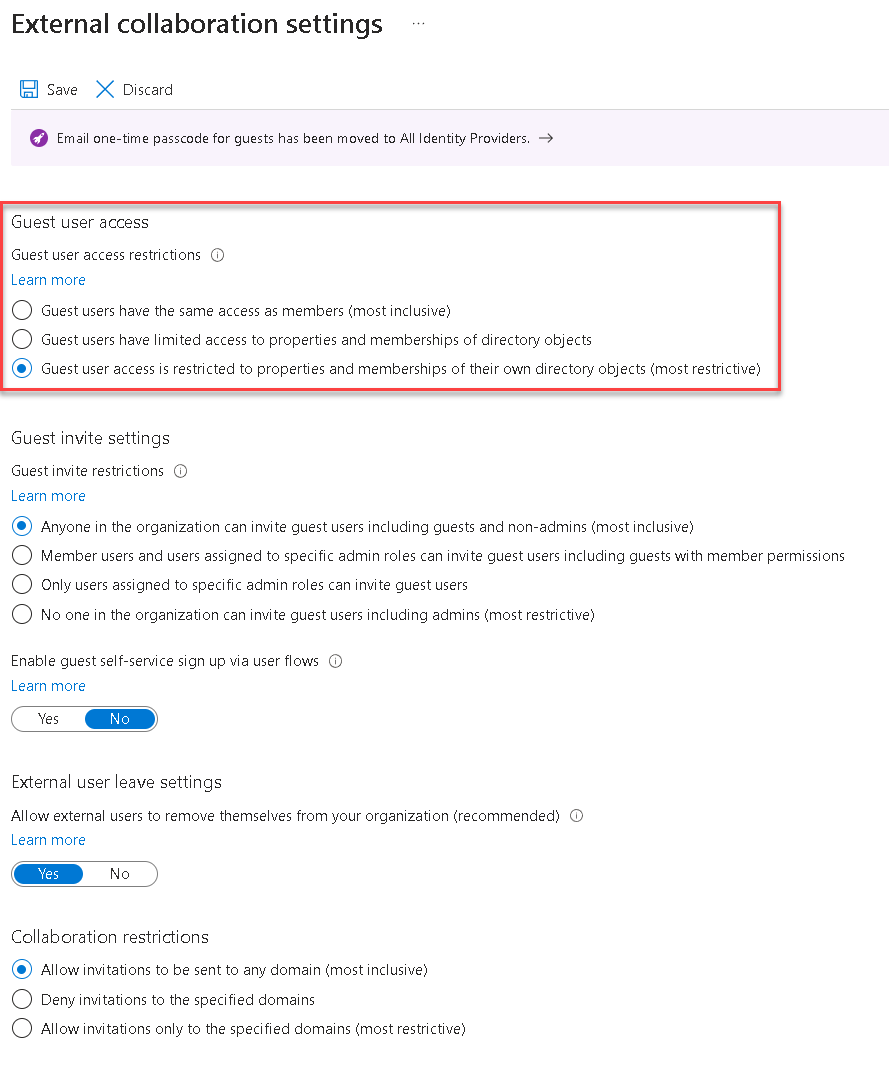
The changes can take up to 15 minutes to take effect. Note that this setting does not override application-specific guest settings in services like SharePoint or Microsoft Teams. If you encounter issues in those services after applying this restriction, check the external sharing settings for those specific applications separately.
You can also configure this via the Microsoft Graph API or PowerShell. For example, to set the most restricted guest permission level using PowerShell, you would use the Update-MgPolicyAuthorizationPolicy cmdlet with the specific role ID for restricted access. This is useful if you are automating tenant hardening or managing multiple environments.
Update-MgPolicyAuthorizationPolicy -GuestUserRoleId '2af84b1e-32c8-42b7-82bc-daa82404023b'This command sets the guestUserRoleId to the value associated with the restricted access level. Verify the change by running Get-MgPolicyAuthorizationPolicy and checking the GuestUserRoleId property.
Enforce MFA for guest access
Restricting visibility is only half the security equation. Guest accounts are often targeted because they may have weaker authentication controls than member accounts. Requiring multifactor authentication (MFA) for guest users is a critical step to prevent credential theft from being leveraged against your resources.
Conditional Access is the mechanism to enforce this. You need the Conditional Access Administrator role to create the policy. The policy should target All guest and external users under the Include section. It is essential to exclude your emergency access or break-glass accounts from this policy to ensure you can still access the tenant if MFA methods fail.
Under Target resources, select All cloud apps to apply the requirement broadly, or narrow it to specific applications if you prefer a granular approach. Under Access controls, select Grant access and then Require multifactor authentication.
Before enabling the policy, set it to Report-only mode. This allows you to verify that the policy would affect the intended guest users without actually blocking them. Review the sign-in logs to confirm that guest authentication attempts are being evaluated correctly. Once satisfied, move the toggle from Report-only to On.
Clean up stale guest accounts
Guest accounts tend to accumulate over time. When collaboration ends, these accounts become stale and represent a security risk if they retain access to your directory and applications. You need a process to monitor and remove these accounts at scale.
Microsoft Entra ID provides inactive guest insights to help you identify guests who have not signed in for a specified period, typically 90 days by default. You can access this via ID Governance > Dashboard > Guest access governance > View inactive guests. This report gives you an overview of inactive guests and allows you to export the data for further analysis.
To automate the cleanup, use Access Reviews. You can create a review that targets guest users in specific groups or all guest users in the tenant. A recommended pattern is a multi-stage review where guests first self-attest whether they still need access. If they do not respond or deny access, a second-stage reviewer (such as the group owner) makes the final decision.
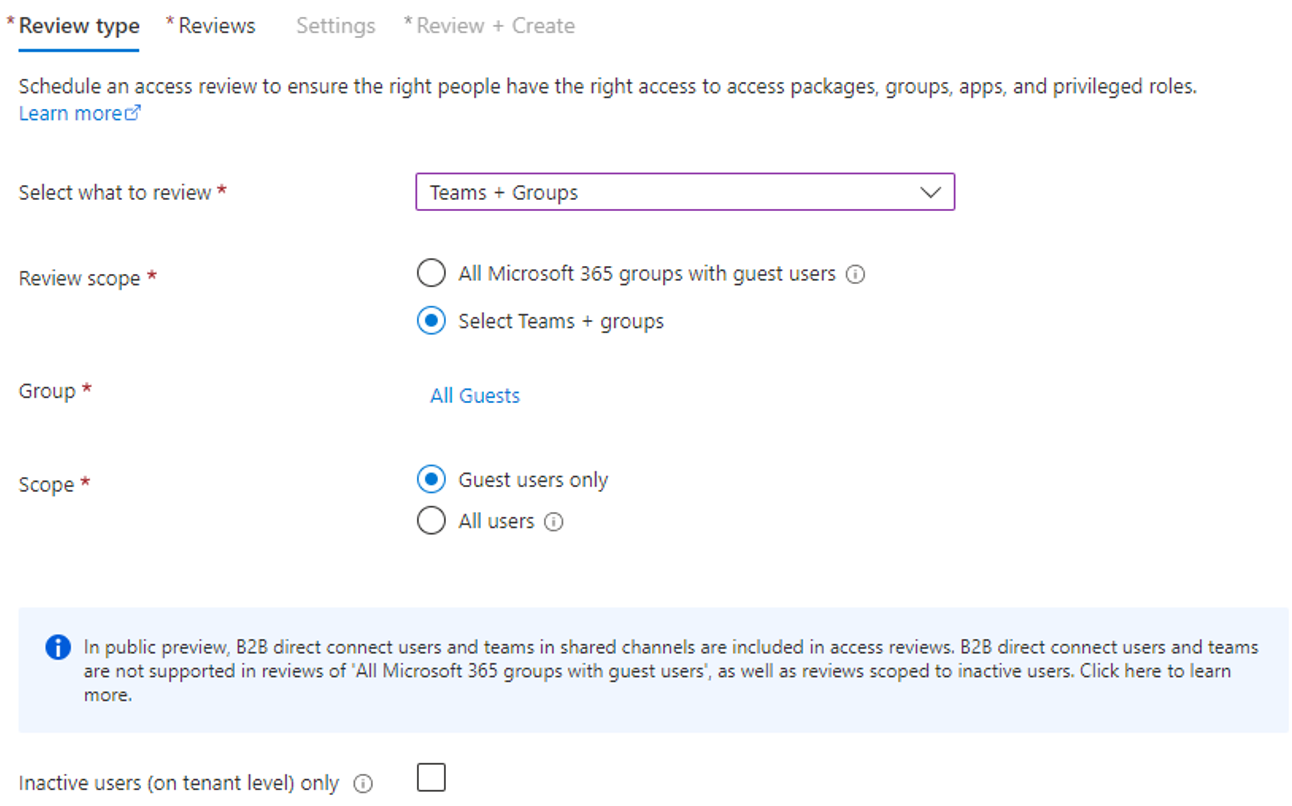
Configure the review to automatically apply results. Set the action for denied guests to Block user from signing in for 30 days, then remove user from the tenant. This two-step process ensures that accidental denials can be recovered within the 30-day block period before permanent deletion. After deletion, guests can be restored for up to 30 days; beyond that, a new invitation is required.
Ensure you have the necessary licenses for Identity Governance features before implementing Access Reviews. Also, consider creating dynamic groups to scope your reviews, for example, targeting only guests from specific external domains or those assigned to specific project groups.
Verification and next steps
Start by reviewing your current guest permission level in the External collaboration settings. If you are still using the default limited access, evaluate whether the restricted access level is suitable for your security posture.
Next, check your Conditional Access policies to ensure guest users are subject to MFA. If not, create a report-only policy and monitor the logs for a few days to understand the impact.
Finally, establish a recurring Access Review for inactive guests. Define what constitutes “inactive” based on your collaboration patterns and automate the removal process. This reduces the administrative burden and ensures that your guest population remains lean and secure.
If you find that certain applications do not behave as expected after restricting guest permissions, investigate the application-specific external sharing settings. The directory-level restriction does not override these application-level configurations, so you may need to adjust them separately to maintain compatibility.
References for Review guest access before sharing an Azure application: Restrict guest user access permissions, Require MFA for guest users with Conditional Access, Monitor and clean up stale guest accounts.