
Require stronger authentication for privileged operations
Este artigo ainda não foi traduzido — está a ver a versão em inglês.
The Azure management plane is moving to mandatory multifactor authentication (MFA) for all sign-in attempts. This is not an optional security baseline; it is an enforced requirement that rolls out in phases. If you rely on user-based service accounts for automation or have privileged roles protected only by standard MFA, you need to act now to avoid service disruption.
The enforcement timeline is strict. Phase 1, which began in late 2024, requires MFA for interactive sign-ins to the Azure portal, Microsoft Entra admin center, and Microsoft Intune admin center. Phase 2, starting September 1, 2025, extends this requirement to Azure CLI, Azure PowerShell, the Azure mobile app, Infrastructure as Code (IaC) tools, and REST API endpoints for Create, Update, or Delete operations 1.
This guide covers two distinct but related actions: preparing your tenant for the mandatory enforcement and strengthening the protection for your most privileged accounts using Conditional Access.
Understand the mandatory MFA enforcement scope
Mandatory MFA is implemented separately from any Conditional Access policies you have configured. It cannot be disabled or bypassed through standard policy settings 1. Microsoft Entra ID sign-in logs will show the source of the MFA requirement as “Mandatory MFA” 1.
The enforcement applies to all user accounts signing in to perform operations in the affected applications. Read operations in Azure CLI, Azure PowerShell, and REST APIs are exempt from the Phase 2 requirement 1. However, any user account used as a service account for automation must complete MFA when the enforcement begins. User identities are not recommended for automation; you should migrate these to workload identities such as managed identities or service principals 1.
If your organization already enforces MFA for these users, or if they sign in with stronger methods like passwordless or passkey (FIDO2), there is no change in behaviour for them 1. The enforcement only impacts accounts that do not already meet the requirement.
Prepare for Phase 2: September 1, 2025
Phase 2 enforcement targets non-interactive and command-line clients. This includes:
- Azure CLI
- Azure PowerShell
- Azure mobile app
- IaC tools (using Azure CLI or Azure PowerShell IDs)
- REST API endpoints (Control Plane)
- Azure SDK 1
If you use user accounts for automation, you must migrate them to workload identities. Microsoft provides guidance for signing in with managed identities or service principals 1. For example, you can use az login --identity for managed identities or authenticate with a service principal using client credentials 1.
The OAuth 2.0 Resource Owner Password Credentials (ROPC) token grant flow is incompatible with MFA. After MFA is enabled, ROPC-based APIs throw exceptions. You must migrate away from ROPC in your applications. This affects libraries such as MSAL and Azure Identity libraries that use UsernamePasswordCredential or similar APIs 1.
Strengthen authentication for privileged roles
While mandatory MFA protects all users, Microsoft recommends requiring phishing-resistant multifactor authentication for highly privileged administrative roles. This is a separate, stronger requirement that you can enforce using Conditional Access policies 2.
Phishing-resistant MFA includes methods such as FIDO2 security keys, Windows Hello for Business, and certificate-based authentication. These methods are resistant to phishing attacks because they bind the authentication to the specific domain 2.
Create a Conditional Access policy for phishing-resistant MFA
To enforce phishing-resistant MFA for privileged roles, you need to create a Conditional Access policy. You must have at least the Conditional Access Administrator role to create this policy 2.
- Sign in to the Microsoft Entra admin center as a Conditional Access Administrator 2.
- Browse to Protection > Conditional Access > Policies 2.
- Select New policy 2.
- Give your policy a meaningful name 2.
- Under Assignments, select Users or workload identities:
- Under Include, select Directory roles and choose at least the following roles: Global Administrator, Application Administrator, Authentication Administrator, Billing Administrator, Cloud Application Administrator, Conditional Access Administrator, Exchange Administrator, Helpdesk Administrator, Password Administrator, Privileged Authentication Administrator, Privileged Role Administrator, Security Administrator, SharePoint Administrator, and User Administrator 2.
- Under Exclude, select Users and groups and choose your organization’s emergency access or break-glass accounts 2.
- Under Target resources > Cloud apps > Include, select All cloud apps 2.
- Under Access controls > Grant, select Grant access:
- Confirm your settings and set Enable policy to Report-only 2.
- Select Create 2.
After administrators confirm the settings using report-only mode, they can move the Enable policy toggle from Report-only to On 2.
Prerequisites and warnings
Before creating this policy, ensure your administrators have the appropriate phishing-resistant authentication methods registered. If you enable this policy without completing this step, you risk locking yourself out of your tenant 2. Administrators can configure Temporary Access Pass to register passwordless authentication methods or follow the steps to register a passkey (FIDO2) 2.
Conditional Access policies support built-in roles only. They are not enforced for other role types, including administrative unit-scoped or custom roles 2.
Verify and monitor
Microsoft will notify all Microsoft Entra Global Administrators through email, service health notifications (tracking ID: 4V20-VX0), portal notifications, and Microsoft 365 message center (message ID: MC862873) 1. After enforcement, a banner appears in the Azure portal 1.
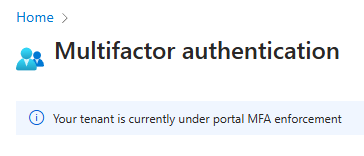
To verify that users are set up for mandatory MFA, refer to the guidance on how to verify that users are set up for mandatory MFA 1. If a user can’t sign in to Azure and other admin portals after rollout, a Global Administrator can run a script to postpone the MFA requirement and allow users to sign in 1.
For privileged roles, monitor the Conditional Access policy in report-only mode to ensure that the expected administrators are being challenged and that no legitimate users are excluded inadvertently 2. Once you are confident, switch the policy to On 2.
Verification Checklist
- Identify user-based service accounts: Review automation pipelines for scripts using
UsernamePasswordCredentialor ROPC flows. Migrate these to managed identities or service principals before September 1, 2025 1. - Register phishing-resistant methods: Ensure all administrators in the included roles have FIDO2 keys, Windows Hello for Business, or certificates registered 2.
- Test Conditional Access: Enable the phishing-resistant MFA policy in Report-only mode. Check sign-in logs for the expected challenges and exclusions 2.
- Monitor Mandatory MFA: Watch for the enforcement banner and service health notifications. Verify that sign-in logs show “Mandatory MFA” as the source for required challenges 1.