
Put an API behind Azure API Management
Este artigo ainda não foi traduzido — está a ver a versão em inglês.
You have an API Management instance ready and a backend service you want to expose. The first practical step is to add the API and map its operations so that API Management can route traffic correctly. This guide shows how to do that manually in the Azure portal, including how to handle parameterised paths and wildcard operations.
Prerequisites and scope
You need an existing API Management instance. If you do not have one, the Create an Azure API Management instance quickstart covers the initial setup. The steps below apply to all API Management tiers, including Classic, V2, and Consumption Manually Add an API by Using the Azure portal | Microsoft Docs.
You also need permission to manage the API Management service. The management plane is where you define APIs, products, and policies, and it is accessed via the Azure portal, Azure CLI, PowerShell, or REST API Azure API Management - Overview and key concepts. Ensure your account has the necessary role (such as API Management Service Contributor or Owner) on the service resource.
Add a blank API
Start by creating the API container. This does not automatically import operations; it simply establishes the link to the backend.
- In the Azure portal, search for and select API Management services, then select your instance.
- In the left menu, under APIs, select APIs.
- Select + Add API.
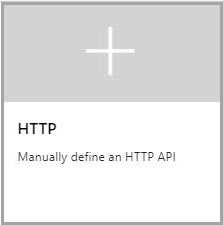
- Select the HTTP tile.
- Enter the Web service URL for your backend. For example,
https://httpbin.org. - Configure other settings as required, such as the display name and API path. The Import and publish your first API tutorial explains these settings in detail.
- Select Create.
At this point, you have an API connected to a backend, but no operations are exposed through API Management. If you call a backend operation that has not been explicitly mapped, you will receive a 404 error Manually Add an API by Using the Azure portal | Microsoft Docs.
Map operations to the backend
You must create API Management operations that map to the backend operations you want to expose. You can do this for simple endpoints, parameterised paths, or wildcards.
Simple operation
To expose a specific endpoint, such as /get:
- Select the API you just created.
- Select + Add operation.
- In URL, select GET and enter
/get. - Enter a Display name, such as
FetchData. - Select Save.
Parameterised operation
For endpoints that take path parameters, such as /status/{code}:
- On the Design tab, select + Add operation.
- In URL, select GET and enter
/status/{code}. - Enter a Display name, such as
GetStatus. - Select Save.
When testing, you will be prompted to provide the value for code.
Wildcard operation
A wildcard operation allows you to pass an arbitrary value with the request, mapping to /*.
- On the Design tab, select + Add operation.
- In URL, select GET and enter
/*. - Enter a Display name, such as
WildcardGet. - Select Save.
[!CAUTION] Be cautious when configuring a wildcard operation. This configuration might make an API more vulnerable to certain API security threats, such as improper inventory management Manually Add an API by Using the Azure portal | Microsoft Docs.
Test the operations
You can test the operations directly in the Azure portal. This uses the built-in all-access subscription, which automatically populates the Ocp-Apim-Subscription-Key header for testing purposes Import an OpenAPI specification to Azure API Management | Microsoft Docs.
- Select the API and then the Test tab.
- Select the operation you created (e.g.,
FetchDataorGetStatus). - Enter any required parameters (e.g.,
codeforGetStatus). - Select Send.
The response from the backend will appear in the HTTP response section. If you are testing against a backend that is not publicly accessible, you may need to select Bypass CORS proxy in the test console to send the request directly from the browser to the API Management instance Import an OpenAPI specification to Azure API Management | Microsoft Docs.
Next steps
Once the operations are mapped and tested, you can proceed to secure the API by creating products and subscriptions, or apply policies for rate limiting and transformation. The Transform and protect your API guide covers these advanced configurations.
If you have an OpenAPI specification, you can also import it to automatically generate operations, rather than adding them manually Import an OpenAPI specification to Azure API Management | Microsoft Docs.