
Investigate an unexpected Conditional Access result
Este artigo ainda não foi traduzido — está a ver a versão em inglês.
A user reports a sign-in failure, or perhaps they are not being challenged for multi-factor authentication when you expected them to be. The first thing to check is not the policy configuration itself, but the evidence of what actually happened during the authentication attempt. Conditional Access is a rule engine that evaluates conditions against a user’s sign-in context. When the outcome is not what you intended, it usually means one of two things: the policy did not apply because the conditions were not met, or it applied but was overridden by an exclusion or a conflicting rule. To distinguish between these, you need to look at the sign-in logs and then validate your assumptions with the What If tool.
Start with the sign-in log
The Microsoft Entra sign-in logs provide the ground truth for every authentication attempt. If you are troubleshooting a specific user’s failure, you need to find the corresponding event.
- Sign in to the Microsoft Entra admin center as at least a Reports Reader.
- Browse to Entra ID > Monitoring & health > Sign-in logs.
- Apply filters to narrow the scope. Use the Username to identify the user, the Date to limit the timeframe, and the Conditional Access filter to show only events where Conditional Access was involved.
Once you have located the relevant sign-in event, select it to view the details. The key information is in the Conditional Access tab. This tab lists the specific policies that were evaluated during that sign-in attempt.
The log distinguishes between policies that applied and those that did not. If a policy you expected to block access is not listed as applied, the log will explain why. It might show that the user was excluded, or that the condition (such as device compliance or location) was not met. If the policy did apply, the log will show the result, such as “Block access” or “Require multifactor authentication.”
If the sign-in failed, the error message on the user’s screen often provides a clue. Common error codes include AADSTS53000 for a non-compliant device or AADSTS53003 for access blocked by Conditional Access. Selecting More Details on the error page reveals a correlation ID that can help you locate the exact event in the logs.
Use the What If tool for validation
The sign-in logs tell you what happened. The What If tool helps you understand why it happened by simulating a sign-in with specific conditions. This is particularly useful when you are unsure whether a policy is configured correctly or if a condition is being evaluated as expected.
Find the What If tool in the Microsoft Entra admin center > Entra ID > Conditional Access > Policies > What If.
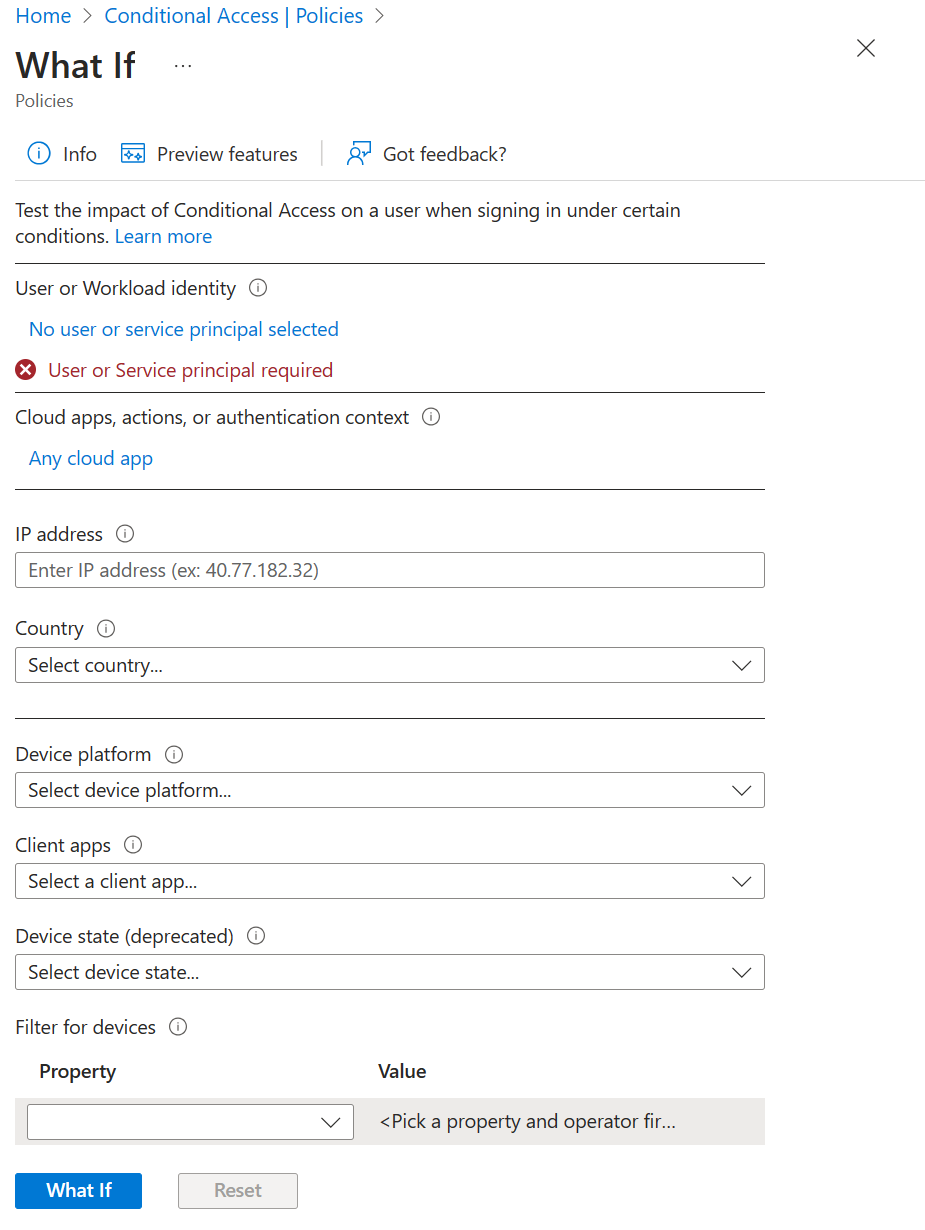
The tool requires a User or Workload identity to start. You can then provide optional context to narrow the simulation, such as the cloud app, IP address, device platform, or sign-in risk. This information can be gathered from the user, their device, or the sign-in logs you just reviewed.
When you run the simulation, the tool generates two lists:
- Policies that will apply: This shows which Conditional Access policies would apply given the conditions. It includes both grant and session controls, even for policies in report-only mode.
- Policies that won’t apply: This shows policies that would not apply, along with the reason why. For example, it might indicate that the user is excluded from the policy.
This tool is effective for validating network-based policies. If you have a policy that allows access from trusted locations and blocks access from others, you can simulate a sign-in from a blocked location to confirm that the user is indeed blocked. You can then simulate a sign-in from a trusted location to ensure access is allowed.
Check for service dependencies and audience reporting
Sometimes, a sign-in failure is not caused by the application the user is trying to access, but by a backend service dependency. For example, signing in to Microsoft Teams might require access to Azure Resource Manager for certain operations. If a Conditional Access policy blocks access to Azure Resource Manager, the Teams sign-in might fail.
To identify these dependencies, review the sign-in log for the application and the resource called. The log will show the primary application and the underlying resources. If you need to target a specific dependency, you must include all relevant applications and resources in your Conditional Access policy.
Audience reporting in the sign-in logs provides further clarity. When a user signs in to an app like Teams, they are requesting access to multiple resources. The Audience field in the log shows all these resources. If a Conditional Access policy applies to one of these resources, it will appear in the log, even if the user was only aware of signing in to the primary application. Admins find Audience in the sign-in logs after selecting a policy on the Conditional Access tab.
Continuous access evaluation considerations
If your organisation uses continuous access evaluation (CAE), the sign-in logs will include an Is CAE Token filter. CAE allows Microsoft Entra ID to re-evaluate policies during a user’s session, for example, if the user’s risk level changes or their device compliance status is revoked.
When investigating CAE-related issues, you need to check both the interactive and non-interactive sign-in requests. CAE is only marked true for one of these requests. The CAE insights workbook can also help you monitor IP address mismatches between Microsoft Entra ID and resource providers, which can trigger unexpected evaluations.
If you are locked out
If a policy is blocking your own access, you need to act quickly. Check if there are other administrators in your organisation who are not blocked. An admin with access can disable the policy that is causing the issue. If no admin can access the portal, you must submit a support request to Microsoft. Include the request ID, time, and date from the sign-in event in your incident details to help support locate the specific event.
Verify the policy configuration
Once you have identified the policy that caused the unexpected result, review its configuration. Select the Policy Name from the sign-in log to open the policy in the admin center. Check the assignments, conditions, and controls.
The sign-in log also provides a detailed view of why a policy was applied or not. Select the ellipsis on the right side of the policy in the sign-in event to see policy details. This view shows the conditions collected at sign-in and whether they satisfied the policy requirements.
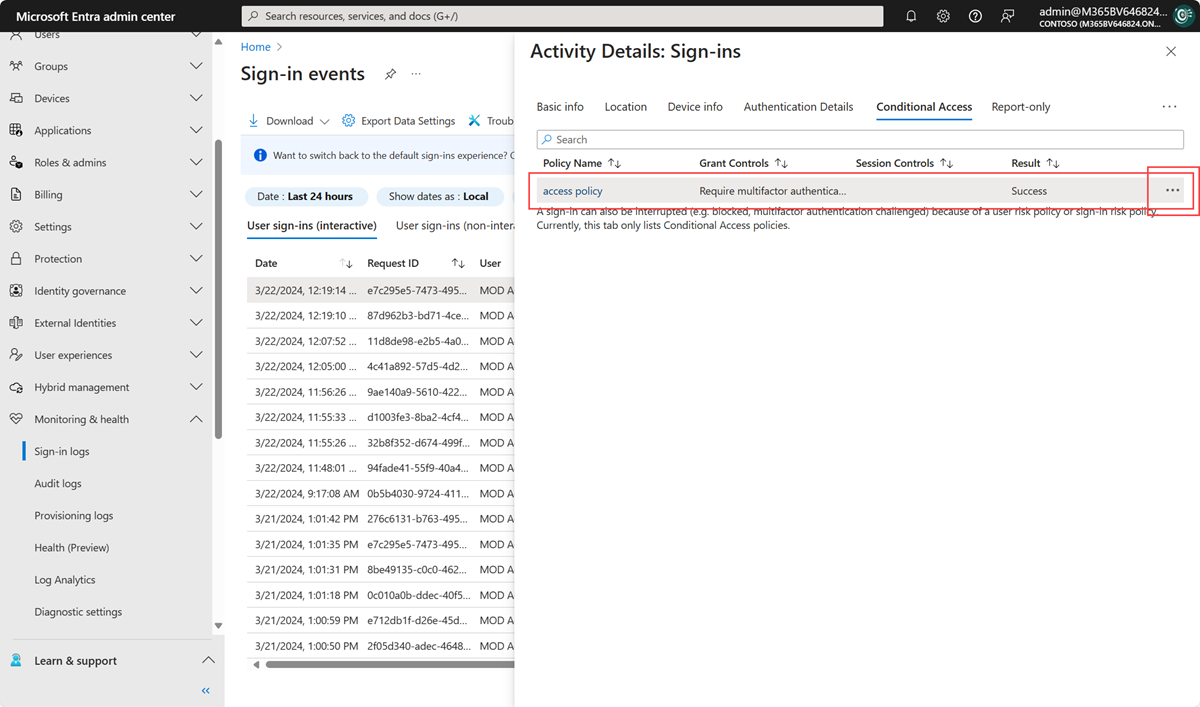
If the sign-in logs and the What If tool do not provide enough information, you can use the sign-in diagnostic tool. This is available under Basic info > Troubleshoot Event in the sign-in log. The diagnostic tool provides additional insights into the authentication process.
The next step is to adjust the policy based on your findings. If the policy was too broad, narrow the assignments. If a condition was not met, update the condition or the user’s state. If report-only mode is supported for the specific policy type, you can use it to validate impact without blocking access.
References for Investigate an unexpected Conditional Access result: Troubleshoot Conditional Access using the What If tool, Troubleshooting sign-in problems with Conditional Access, Monitor and troubleshoot sign-ins with continuous access evaluation in Microsoft Entra ID.