
Investigate a workflow trigger that fires unexpectedly
Este artigo ainda não foi traduzido — está a ver a versão em inglês.
You notice a workflow running when you didn’t expect it to. The first thing to check is not the downstream actions, but the trigger itself. Azure Logic Apps records every attempt the trigger makes to start the workflow, whether it succeeds, fails, or produces empty data. Understanding this history is the only way to confirm whether the trigger fired as designed or if an external event caused an unexpected run.
Check the trigger history
Every workflow run begins with a trigger. The trigger history lists all trigger attempts, including those that did not result in a successful workflow execution. This is the starting point for any investigation into unexpected behaviour.
In the Azure portal, open your Logic App resource. Navigate to the Workflow section and select Trigger history. This view shows a chronological list of trigger attempts. Each entry represents a moment the trigger evaluated its condition or received an event.
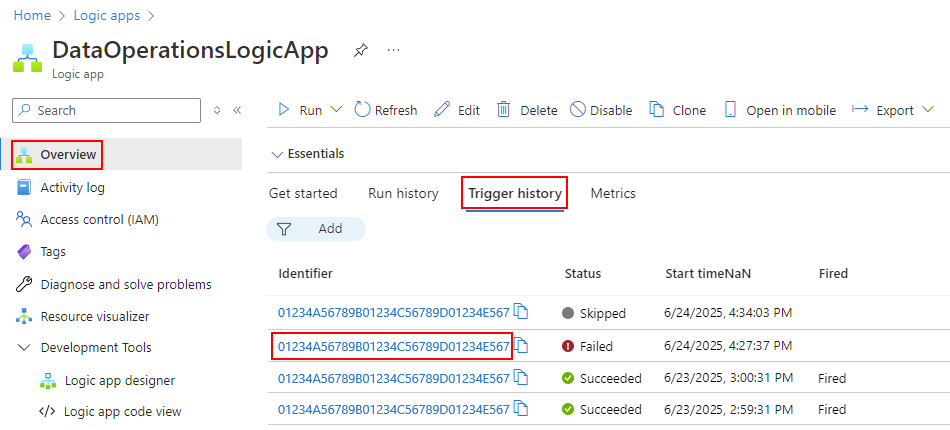
Select a specific trigger attempt to expand its details. You need to verify two things: the inputs and the outputs.
Inputs are the data the trigger received. If this is an HTTP trigger, the inputs include the request body, headers, and query parameters. If it is a scheduled trigger, the inputs might be the current timestamp. Check these against your expectations. Did the payload match the schema? Were the headers correct? If the inputs are empty or malformed, the trigger may have fired but failed to pass data to the next step, or it may have fired when it shouldn’t have because the condition was too loose.
Outputs are the data the trigger passes to the next action. If the trigger fails to parse the input, the outputs might be null or contain an error message. For example, if an RSS feed trigger cannot find the feed, the outputs will reflect that failure. Confirming the outputs helps you determine if the workflow continued because the trigger succeeded, or if it stopped because the trigger itself encountered an error.
Review the workflow run history
If the trigger history shows an attempt, the next step is to see what happened during the resulting workflow run. Open the Run history for the workflow. This lists every instance of the workflow that was executed.
Select the run that corresponds to the unexpected trigger attempt. The run history displays the status of each step in the workflow. Look for the trigger step and the subsequent actions. If the trigger succeeded, check the first action. Did it run? Did it fail? If the trigger failed, the run might be marked as failed immediately, or it might have proceeded if the error was handled.
Review the inputs and outputs of the failed step. This often reveals why the run was unexpected. For instance, an action might have failed due to a missing dependency, causing the workflow to terminate in a state that looks like an error but is actually a controlled failure. Alternatively, the trigger might have fired correctly, but the downstream logic produced an unexpected result.
Use runtime debugging for complex cases
If the trigger history and run history do not provide enough context, you can add diagnostic steps to the workflow. This is particularly useful for HTTP triggers where you need to inspect the exact shape and size of incoming requests.
One practical approach is to use a service like Webhook Tester. Generate a unique URL from the service. Add an HTTP POST action to your workflow, before the main logic, and send the trigger inputs to this URL. When the workflow runs, you can revisit the Webhook Tester site to see the exact request data that triggered the workflow. This helps you determine if the trigger was fired by an external system with unexpected data.
Handle errors and exceptions
Understanding how errors are handled is crucial for interpreting run history. By default, if an action fails, the workflow marks the action as Failed and any successor actions as Skipped. This means the workflow run is marked as Failed unless you explicitly handle the error.
You can change this behaviour using the Run after setting. In the designer, select an action and open its settings. Under Run after, you can specify which predecessor statuses allow the action to run. By default, an action runs only if the predecessor Succeeded. You can change this to run if the predecessor Failed, Skipped, or TimedOut.
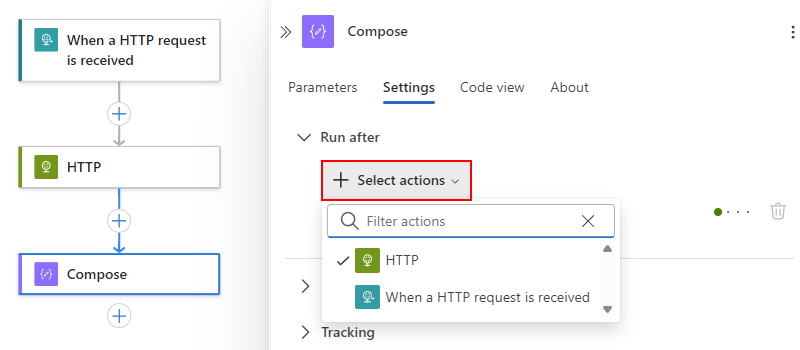
This is useful for creating robust workflows. For example, you might want to send an email notification if a data processing action fails. To do this, set the email action’s Run after condition to include Has failed for the data processing action. This ensures the notification runs even if the primary task fails.
Common pitfalls
- Trigger history vs. Run history: Trigger history shows every attempt to start the workflow. Run history shows the execution of the workflow itself. A trigger attempt might not result in a run if the trigger fails before the workflow starts.
- Empty inputs: A trigger might fire but pass empty inputs to the next step. This can cause downstream actions to fail or behave unexpectedly. Always check the trigger inputs.
- Error handling: If you don’t handle errors, a single failed action can stop the entire workflow. Use Run after settings to control the flow of execution.
- Performance: Workflow run duration includes scheduling overhead and waiting time. A long run duration doesn’t necessarily mean an action took a long time to execute.
Verification
To verify your investigation, check the trigger history for the unexpected run. Confirm the inputs and outputs match your expectations. If they do, check the run history to see where the workflow failed or succeeded. If the trigger inputs are correct, the issue likely lies in the downstream logic or error handling. If the trigger inputs are incorrect, the issue is with the external system firing the trigger.
By systematically reviewing the trigger history, run history, and error handling settings, you can identify the root cause of unexpected workflow executions and make informed decisions about how to fix them.
References for Investigate a workflow trigger that fires unexpectedly: Troubleshoot and Diagnose Workflow Failures, Handle errors and exceptions in workflows.