
Filter an Event Grid subscription around a consumer need
Este artigo ainda não foi traduzido — está a ver a versão em inglês.
You have an Event Grid topic receiving a high volume of events, but your consumer only cares about a specific subset. Sending every event to your endpoint wastes bandwidth, increases processing costs, and makes debugging harder. The solution is to apply filters at the subscription level so Event Grid discards irrelevant events before they reach your handler.
Event Grid supports three distinct filtering mechanisms: event types, subject prefixes or suffixes, and advanced data-based operators. Choosing the right one depends on what information is available in the event payload and how granular your consumer needs to be.
Filter by event type
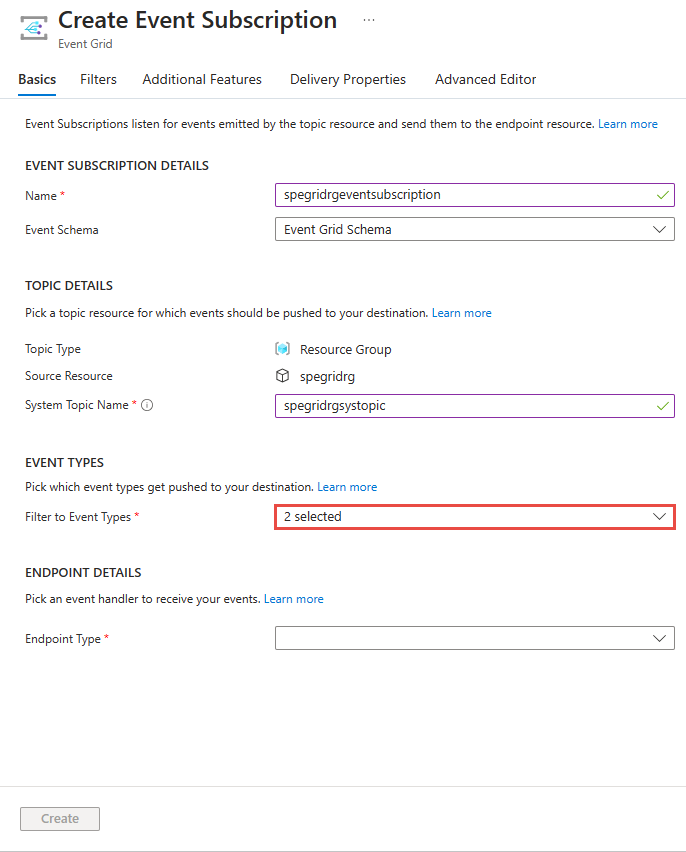
The simplest filter limits delivery to specific event types. This is useful when your topic publishes multiple distinct events, such as Microsoft.Resources.ResourceWriteSuccess and Microsoft.Resources.ResourceWriteFailure, but your consumer only handles one.
When creating a subscription, you specify the included types. For a resource group, you might only want success events:
az eventgrid event-subscription create \
  --name demoSubToResourceGroup \
  --resource-group myResourceGroup \
  --endpoint <endpoint-URL> \
  --included-event-types Microsoft.Resources.ResourceWriteSuccess
In the Azure portal, this is available in the Filters tab when creating a subscription to a system topic or custom topic. You select the types from a dropdown list. For existing subscriptions, you can modify this list on the Filters tab of the Event Subscription page.
This filter is coarse. It does not distinguish between different resources publishing the same event type. If you need to target a specific resource, use subject filtering.
Filter by subject
Every event has a subject property, which typically identifies the resource or path that generated the event. You can filter events where the subject begins with or ends with a specific string.
For example, if you only want events from a specific Network Security Group, you can filter by its resource ID:
resourceId=$(az network nsg show -g myResourceGroup -n demoSecurityGroup --query id --output tsv)

az eventgrid event-subscription create \
  --name demoSubscriptionToResourceGroup \
  --resource-group myResourceGroup \
  --endpoint <endpoint-URL> \
  --subject-begins-with $resourceId
Similarly, for a storage account, you might only want events for .jpg files:
storageid=$(az storage account show --name $storageName --resource-group myResourceGroup --query id --output tsv)

az eventgrid event-subscription create \
  --resource-id $storageid \
  --name demoSubToStorage \
  --endpoint <endpoint-URL> \
  --subject-ends-with ".jpg"
Subject filtering is limited to prefix or suffix matching; it does not support partial substring matching or regular expressions. You can enable case-sensitive matching in the portal or via the isSubjectCaseSensitive property in ARM templates.
Filter by operators and data
When event types and subjects are not sufficient, you can use advanced filters to inspect the data object within the event. This allows you to filter based on specific properties and values, such as a color field being blue, red, or green.
To create a subscription with an advanced filter, you specify the key, operator, and values. For example, to filter for specific colors:
az eventgrid event-subscription create \
  --source-resource-id $topicid \
  -n demoAdvancedSub \
  --advanced-filter data.color stringin blue red green \
  --endpoint $endpointURL \
  --expiration-date "<yyyy-mm-dd>"
The stringin operator checks if the value of data.color is in the provided list. Other operators include numberin, exists, stringcontains, and greaterthan. You can combine multiple advanced filters using boolean logic (AND/OR) by nesting them.
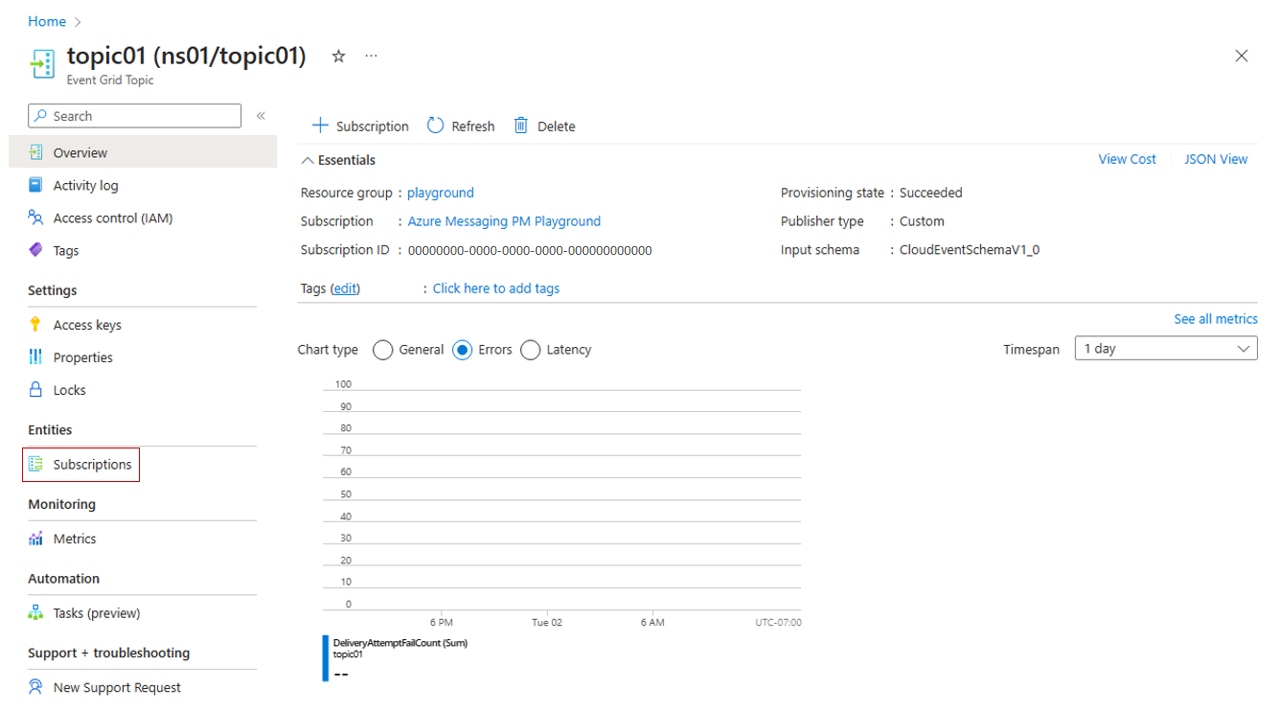
Note: Advanced filtering on event data is not currently supported for event subscriptions in namespace topics. Namespace topics use a simplified filtering model that only supports event types and subject prefix/suffix matches via context attributes. Filtering on event
datais not yet available for namespace topics.
Test the filter
To verify your filter, publish a test event that should be delivered and one that should be blocked.
For the advanced filter example above, publish an event with color set to green:
topicEndpoint=$(az eventgrid topic show --name $topicName -g gridResourceGroup --query "endpoint" --output tsv)
key=$(az eventgrid topic key list --name $topicName -g gridResourceGroup --query "key1" --output tsv)

event='[ {"id": "'"$RANDOM"'", "eventType": "recordInserted", "subject": "myapp/vehicles/cars", "eventTime": "'`date +%Y-%m-%dT%H:%M:%S%z`'", "data":{ "model": "SUV", "color": "green"},"dataVersion": "1.0"} ]'

curl -X POST -H "aeg-sas-key: $key" -d "$event" $topicEndpoint
Your endpoint should receive this event. Then, publish an event with color set to yellow:
event='[ {"id": "'"$RANDOM"'", "eventType": "recordInserted", "subject": "myapp/vehicles/cars", "eventTime": "'`date +%Y-%m-%dT%H:%M:%S%z`'", "data":{ "model": "SUV", "color": "yellow"},"dataVersion": "1.0"} ]'

curl -X POST -H "aeg-sas-key: $key" -d "$event" $topicEndpoint
This event should not be delivered. If it is, your filter is not configured correctly.
Verification and next steps
After configuring your subscription, monitor the delivery metrics in the Azure portal. Check the Delivered and Dropped counts for the subscription. A high number of dropped events suggests your filters are discarding irrelevant data, but you should investigate to distinguish between intentional drops and delivery errors.
If you need to adjust filters later, you can edit the subscription in the portal or update the parameters via CLI/PowerShell. Remember that filters are applied at the subscription level, so each consumer with different needs requires a separate subscription.
For namespace topics, remember that advanced data filtering is not currently available. You must rely on event types and subject filtering, or consider using a custom topic if you need data-based filtering.
If you find that your filters are too restrictive or too broad, adjust the values and retest. Use the Expiration Date feature for temporary subscriptions to ensure they are cleaned up automatically.
For more details on available operators and keys, refer to the Advanced filtering documentation.
References for Filter an Event Grid subscription around a consumer need: How to filter events for Azure Event Grid, Create, view, and manage Azure Event Grid event subscriptions in namespace topics, Concepts (push delivery) in Event Grid basic.