
Create a private endpoint and verify name resolution
Este artigo ainda não foi traduzido — está a ver a versão em inglês.
You have an Azure App Service web app and you want to access it from a virtual machine without traversing the public internet. The standard way to do this is to create a private endpoint. However, creating the endpoint is only half the job; the other half is ensuring the virtual machine resolves the web app’s name to the private IP address. If DNS is not configured correctly, the connection will fail, often with a vague timeout or a “host not found” error.
This guide walks through creating a private endpoint for an Azure App Service and verifying that name resolution works as expected. We will use the Azure portal for the creation steps and PowerShell for verification. The example uses an App Service web app named webapp-1 and a virtual machine named vm-1 in the same subscription.
Prerequisites and permissions
Before starting, ensure you have the following:
- An Azure subscription with an active App Service plan. The quickstart documentation specifies that the web app must be deployed in a Basic, Standard, PremiumV2, PremiumV3, IsolatedV2, or Functions Premium (Elastic Premium) plan Quickstart: Create a private endpoint - Azure portal. A free or shared plan does not support private endpoints.
- A virtual network with a subnet where the private endpoint will be deployed.
- A virtual machine in that virtual network (or a peered network) to test connectivity.
- Permissions to create resources in the target resource group and to modify the virtual network configuration.
You do not need to disable public access on the web app. The private endpoint provides a private path; the public endpoint may still exist unless you explicitly configure the app to reject it. Enabling the plan does not automatically protect the workload; it merely provides the connectivity option.
Create the private endpoint
Navigate to the Azure portal and search for Private endpoints. Select + Create.
Basics tab
Enter the project details:
- Subscription: Select your target subscription.
- Resource group: Select or create a resource group (e.g.,
test-rg). - Name: Enter a name for the endpoint, such as
private-endpoint. - Region: Select the same region as the web app and virtual network.
- Network Interface Name: Leave the default (
private-endpoint-nic).
Resource tab
Select the connection method:
- Connection method: Choose Connect to an Azure resource in my directory.
- Subscription: Select your subscription.
- Resource type: Select Microsoft.Web/sites.
- Resource: Select your web app (e.g.,
webapp-1). - Target subresource: Select sites.
This step creates the link between the network interface and the specific web app instance.
Virtual Network tab
Configure the networking settings:
- Virtual network: Select your target VNet (e.g.,
vnet-1). - Subnet: Select the subnet where the endpoint will reside.
- Network policy for private endpoints: Select Edit to apply network policies. Ensure that Network security groups and Route Tables are enabled for all private endpoints in this subnet. This ensures that security rules and routes are applied to the traffic flowing through the endpoint.
For the private IP configuration, you can choose between dynamic or static allocation:
- Dynamically allocate IP address: The system assigns an available IP from the subnet.
- Statically allocate IP address: You specify a fixed IP (e.g.,
10.0.0.10).
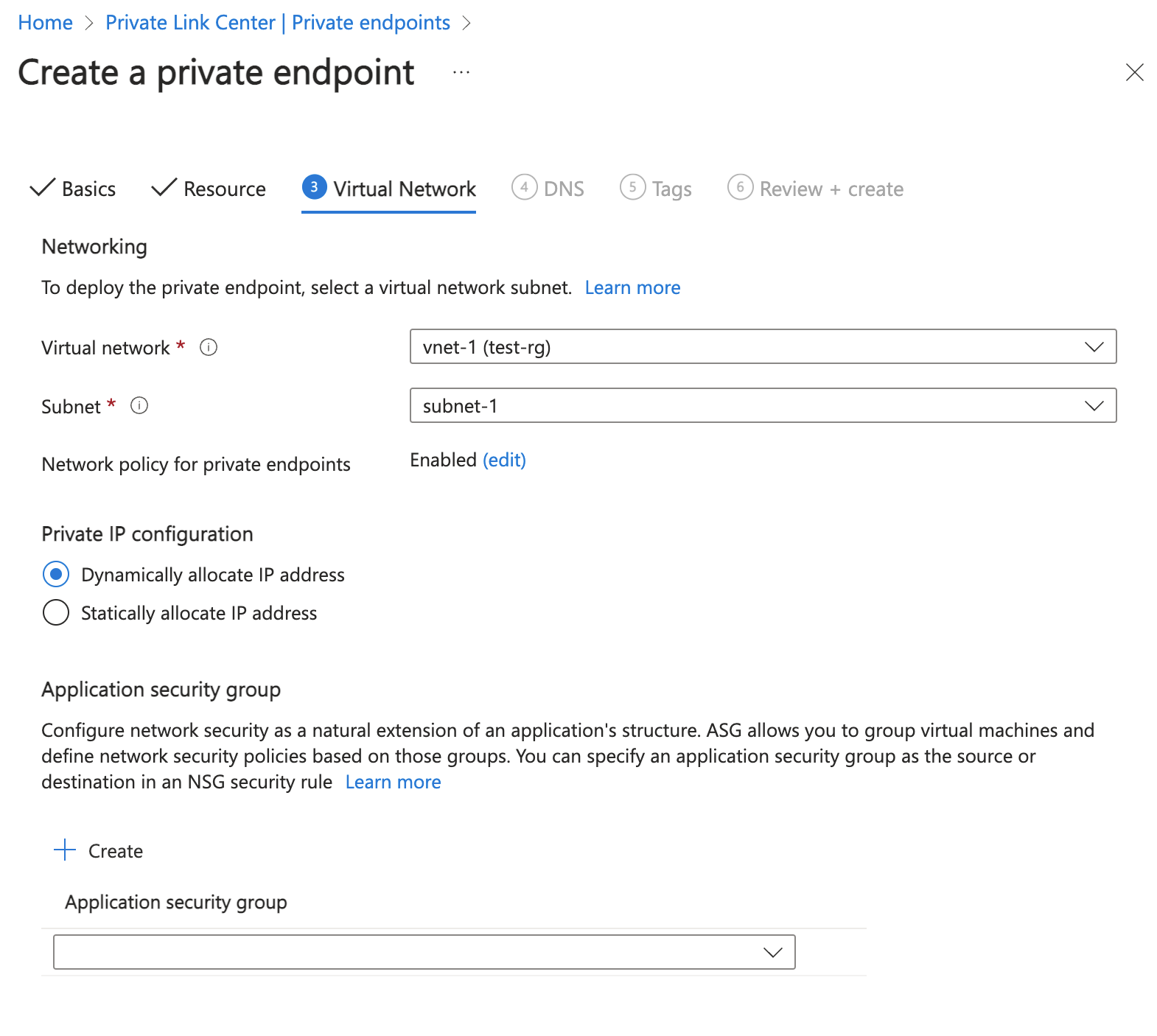
If you choose a static IP, enter a name for the IP configuration (e.g., ipconfig-1) and the desired IP address. Ensure this IP does not conflict with other resources in the subnet.
DNS tab
Leave the DNS settings at their defaults for now. We will configure DNS resolution separately using a private DNS zone. Click Next: Tags, add any relevant tags, and then Review + create.
Select Create to deploy the private endpoint. The deployment typically takes a few minutes. Once completed, the connection state should be Approved.
Configure private DNS resolution
A private endpoint alone does not disable public access or fix DNS. The virtual machine will still try to resolve webapp-1.azurewebsites.net via the public internet unless you override the DNS resolution. The recommended approach is to use a private DNS zone.
For Azure App Services, the recommended private DNS zone name is privatelink.azurewebsites.net. Create a private DNS zone with this name in your subscription. Then, link this zone to the virtual network where your client VM resides. This association allows the VM to resolve queries for this zone to the private IP addresses of the endpoints.
Azure Private Link automatically creates an A-record in the private DNS zone if you use the recommended naming scheme. The record maps the web app’s private domain name to the private IP address assigned to the endpoint. If you do not use the recommended zone name, you must manually create the A-record.
[!CAUTION] Do not place records for multiple services in the same DNS zone. Each private endpoint of like services should have its own DNS zone to avoid record conflicts. Also, avoid overriding a zone that is actively used for public endpoints without proper forwarding, as this can break public connectivity.
Verify connectivity and name resolution
To verify that the private endpoint is working, connect to your virtual machine using Bastion or SSH/RDP.
Check DNS resolution
Open a PowerShell session on the virtual machine and run the following command:
nslookup webapp-1.azurewebsites.netYou should receive a response similar to the following:
Server:  UnKnown
Address:  168.63.129.16

Non-authoritative answer:
Name:    webapp-1.privatelink.azurewebsites.net
Address:  10.0.0.10
Aliases:  webapp-1.azurewebsites.net
The key indicator is the Address field. It should return the private IP address you assigned to the endpoint (e.g., 10.0.0.10). If it returns a public IP or times out, DNS resolution is not working correctly. Check the following:
- Is the private DNS zone linked to the virtual network?
- Does the A-record exist in the private DNS zone?
- Is the VM using the correct DNS server (typically the Azure-provided DNS at
168.63.129.16)?
Test application connectivity
Once DNS resolution is confirmed, test the actual connection. Open a web browser on the VM and navigate to https://webapp-1.azurewebsites.net. If the web app is deployed, you should see the default page or your application content. If you get a connection error, check the following:
- Is the web app running?
- Are there any NSG rules blocking traffic on port 443?
- Is the private endpoint in the Approved state?
Use Network Watcher for detailed diagnostics
If connectivity fails, use Azure Network Watcher to troubleshoot. Select the client VM, go to Connection troubleshoot, and select Outbound connections. Enter the FQDN of the web app and the port (443 for HTTPS). This tool provides a detailed trace of the connection path, helping you identify where the traffic is being blocked or dropped.
Cleanup
If you created these resources for testing, remember to delete the private endpoint, the DNS zone, and the associated resources to avoid unnecessary charges. Deleting the private endpoint does not automatically remove the DNS records; you should clean up the private DNS zone manually.
If you encounter persistent issues, review the private endpoint configuration in the Private Link Center. Check the virtual network and DNS information to ensure the connection state is Approved and the FQDN and private IP address are correctly assigned. If the problem persists, consider engaging Azure Support with the diagnostic information gathered from Network Watcher and Azure Monitor metrics.
The next step is to integrate this connectivity into your application architecture. Ensure that your application code uses the web app’s URL consistently, whether it is running on-premises or in Azure, relying on the DNS override to direct traffic through the private endpoint.
References for Create a private endpoint and verify name resolution: Quickstart: Create a private endpoint - Azure portal, Azure Private Endpoint private DNS zone values, Troubleshoot Azure Private Endpoint connectivity problems.