
Create a Logic Apps workflow with a clear failure path
Este artigo ainda não foi traduzido — está a ver a versão em inglês.
A failure handler running successfully does not mean that the business operation succeeded. Keep those outcomes separate when designing a Logic Apps workflow. The handler can capture useful context or notify an operator while the overall run still needs to show that processing failed.
Start with a disposable Consumption workflow and a controlled test API. Define the expected success and failure behaviour before connecting production systems. The example below has not been deployed or executed for this article.
Group the work and define the failure outcome
Place the related processing actions inside a scope named Process_Data. A scope groups actions and exposes an aggregate status that a later action can use.
Add a separate handler after the scope. Its run-after conditions should match the outcomes that require attention. In this example, those are Failed and TimedOut.
Do not select Skipped automatically for every handler. A skipped branch may be intentional. Decide what it means in the workflow before treating it as a processing failure.
The handler will construct a diagnostic message with the run reference. A final Terminate action then explicitly marks the run as failed. This avoids confusing successful handling with successful processing.
Configure run-after rather than relying on sequence
By default, a following action runs after its predecessor succeeds. Change the handler’s run-after settings so it can run after the processing scope fails.
In the Consumption designer, use the action’s Configure run after option. Select the required predecessor outcomes and clear success for a handler intended only for failures.
The following documented Consumption example illustrates the failed-status selection; include timeout as well for this design:
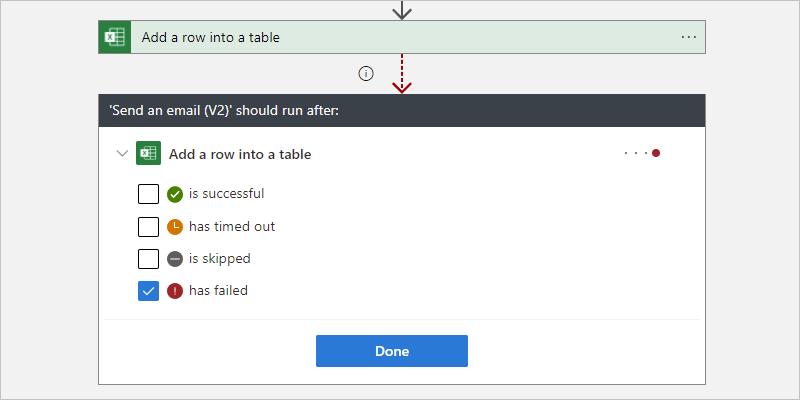
Microsoft’s error-handling guidance explains these status dependencies and the retry options supported by individual actions.
Keep the test definition complete
The following is a complete Consumption workflow definition, not an ARM deployment template. Define the testApiUri workflow parameter as the HTTPS address of your controlled test API before invoking it. The API should be able to return a successful response or a selected test failure.
{
  "$schema": "https://schema.management.azure.com/providers/Microsoft.Logic/schemas/2016-06-01/workflowdefinition.json#",
  "contentVersion": "1.0.0.0",
  "parameters": {
    "testApiUri": {
      "type": "String"
    }
  },
  "triggers": {
    "manual": {
      "type": "Request",
      "kind": "Http",
      "inputs": {
        "schema": {
          "type": "object"
        }
      }
    }
  },
  "actions": {
    "Process_Data": {
      "type": "Scope",
      "actions": {
        "Call_test_API": {
          "type": "Http",
          "inputs": {
            "method": "GET",
            "uri": "@parameters('testApiUri')",
            "retryPolicy": {
              "type": "fixed",
              "count": 2,
              "interval": "PT30S"
            }
          },
          "runAfter": {}
        }
      },
      "runAfter": {}
    },
    "Handle_failure": {
      "type": "Compose",
      "inputs": {
        "message": "The test processing scope did not complete successfully.",
        "scope": "Process_Data",
        "workflowRunId": "@workflow().run.name"
      },
      "runAfter": {
        "Process_Data": [
          "Failed",
          "TimedOut"
        ]
      }
    },
    "Mark_run_failed": {
      "type": "Terminate",
      "inputs": {
        "runStatus": "Failed",
        "runError": {
          "code": "ProcessingFailed",
          "message": "Review the processing scope and failure-handler output in run history."
        }
      },
      "runAfter": {
        "Handle_failure": [
          "Succeeded"
        ]
      }
    }
  },
  "outputs": {}
}
The Request trigger starts the test. Protect its callback URL as a credential and keep it out of source control and shared screenshots.
The HTTP action uses two retries after the initial attempt, with a fixed 30-second interval for retryable failures. This is not an instruction to retry every error. Check the action’s supported policy and the downstream operation’s behaviour.
A timeout can leave the caller uncertain whether a remote write completed. For a real business operation, establish safe repeat behaviour or reconciliation before adding retries.
Capture context without exporting every payload
The Compose handler records a message, the scope name and the workflow run ID. It does not send a notification or repair the downstream system.
Replace or extend that step with the organisation’s approved notification or logging action when implementing the real workflow. Decide how that action’s own failure will be surfaced.
Inspect the processing scope and failed action in run history. If using result() to inspect scoped actions, remember that it returns an array of top-level action results. The first entry is not necessarily the failed action, and deeply nested actions need further inspection.
Avoid forwarding raw inputs and outputs to email merely to obtain an error report. Capture the identifiers and details needed by the operator while following the workload’s data-handling requirements.
Verify both branches in a test environment
Use controlled responses from the test API and inspect the actual run history:
| Test case | What to verify |
|---|---|
| Successful API response | Processing succeeds; the failure handler and failure termination are skipped |
| Retryable failure that persists | The configured attempts occur, the scope fails and the handler runs |
| Handler completes after processing failure | The Terminate action leaves the overall run marked Failed |
| Timeout or handler failure | Inspect the actual statuses and confirm the intended response path |
These are checks to perform, not reported results. Acceptance of the Request trigger alone does not establish that the workflow’s processing succeeded.
Microsoft’s Terminate reference describes the explicit run status. Its monitoring guidance also distinguishes monitoring signals across Consumption and Standard workflows.
Retain the observed statuses, retry behaviour and notification result with the test record. The failure path is ready when an operator can identify the failed work and the workflow reports its outcome accurately.