
Connect a change record to a useful monitoring check
Este artigo ainda não foi traduzido — está a ver a versão em inglês.
You have just approved a change. The ticket is open, the window is active, and you need to know if the system is behaving. The first thing to check is not the ticket status, but the alert instances firing on the affected resources. If you can connect the change record to a specific monitoring view, you stop guessing and start verifying.
Azure Monitor alerts and workbooks serve different purposes in this workflow. Alerts tell you when something has breached a threshold. Workbooks let you visualise the context around that breach. By combining them, you can build a verification view that shows exactly what the change triggered.
Start with the alert instances
The Alerts page in the Azure portal summarises all alert instances generated in the last 30 days Manage your alert instances. This retention period is critical. If you are verifying a change that happened two days ago, the data is still there. If you are waiting a month, it is gone.
For stateful alerts, the instance itself is also deleted after 30 days. However, the alert condition is stored until the alert is resolved. This prevents the alert from firing again while it is being investigated, and ensures that notifications are sent when the alert is resolved Manage your alert instances. This distinction matters: the instance record disappears, but the state logic remains active until you acknowledge or close it.
To see the alerts related to your change, you need to filter the Alerts page. You can access this page from the home page by selecting Monitor > Alerts Manage your alert instances. Alternatively, you can navigate to the specific resource and select Alerts from the monitoring section Manage your alert instances.
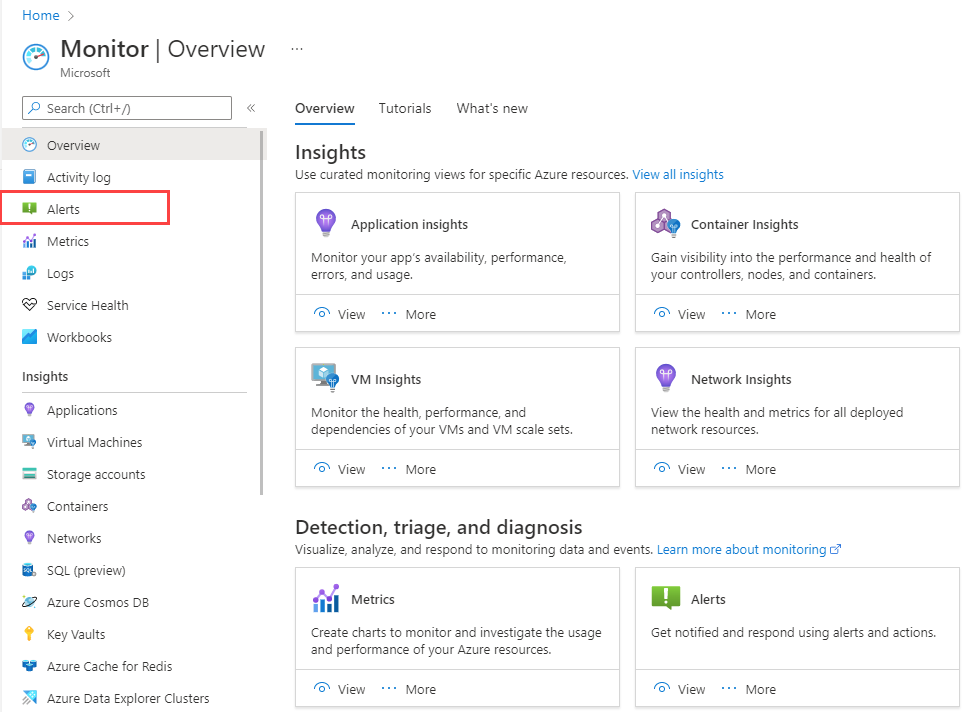
The summary pane shows alerts fired in the last 24 hours by default. You can filter by Time range, Subscription, Alert condition, and Severity Manage your alert instances. If you know the specific alert rule that might have fired due to your change, filter by that condition. This narrows the noise. Select an alert instance to open the Alert details page, where you can see the user response status (New, Acknowledged, or Closed) and additional details Manage your alert instances.
Build a verification workbook
An alert instance is a point in time. A workbook is a persistent view. To create a reusable verification tool, you should build a workbook that queries the alert instances related to the resources involved in the change.
You can create a workbook manually or deploy it programmatically. For a standard verification view, deploying via an Azure Resource Manager (ARM) template ensures consistency across environments Azure Monitor workbooks and Azure Resource Manager templates.
Prerequisites
- Permissions to create resources in the target scope. The documentation states that resource owners can create and manage workbooks programmatically Azure Monitor workbooks and Azure Resource Manager templates. Ensure your account has the necessary rights to deploy
Microsoft.Insights/workbooksresources. - Reader access to the resources generating the alerts, or permissions to query Azure Resource Graph.
- The Alert Management REST API or Azure Resource Graph permissions to query alert instances Manage your alert instances.
Step 1: Define the workbook structure
A workbook instance is defined by its serializedData, which contains the items (queries, text, charts) Azure Monitor workbooks and Azure Resource Manager templates. You can export an existing workbook to get the ARM template structure Azure Monitor workbooks and Azure Resource Manager templates.
The key parameter is workbookSourceId. This links the workbook to a specific resource, such as a virtual machine or a resource group. If you want the workbook to appear in the global Workbooks gallery in Azure Monitor, use the string Azure Monitor instead Azure Monitor workbooks and Azure Resource Manager templates. For change verification, linking it to the specific resource group makes sense.
Step 2: Query the alert instances
Azure Monitor workbooks can query Azure Resource Graph. The AlertsManagementResources schema allows you to manage alerts across multiple subscriptions Manage your alert instances. A typical query for verification might look like this:
AlertsManagementResources
| where TimeGenerated > ago(24h)
| where ResourceId in~ ({ResourceId})
| project TimeGenerated, AlertName, Severity, Status, ResourceId
This query is illustrative. You must replace {ResourceId} with a parameter that allows you to select the specific resource or resource group affected by the change. You can add a parameter to the workbook to make this dynamic Create or edit an Azure Workbook.
Step 3: Add context with text and links
A raw list of alerts is hard to read. Add a text block at the top of the workbook to explain the purpose of the view. Use markdown to format the text. You can use the info or warning styles to highlight important instructions Create or edit an Azure Workbook.
You can also add links to the change record (e.g., Jira, ServiceNow) directly in the workbook. This allows the engineer to jump from the monitoring view to the ticket without switching contexts Create or edit an Azure Workbook.
Step 4: Deploy the workbook
Use the ARM template to deploy the workbook. The template must specify the microsoft.insights/workbooks resource type Azure Monitor workbooks and Azure Resource Manager templates.
{
    "$schema": "http://schema.management.azure.com/schemas/2015-01-01/deploymentTemplate.json#",
    "contentVersion": "1.0.0.0",
    "parameters": {
        "workbookDisplayName": {
            "type": "string",
            "defaultValue": "Change Verification View",
            "metadata": {
                "description": "The friendly name for the workbook"
            }
        },
        "workbookSourceId": {
            "type": "string",
            "defaultValue": "[resourceGroup().id]",
            "metadata": {
                "description": "The id of the resource group"
            }
        },
        "workbookId": {
            "type": "string",
            "defaultValue": "[newGuid()]",
            "metadata": {
                "description": "The unique guid for this workbook instance"
            }
        }
    },
    "resources": [
        {
            "name": "[parameters('workbookId')]",
            "type": "Microsoft.Insights/workbooks",
            "location": "[resourceGroup().location]",
            "kind": "shared",
            "apiVersion": "2018-06-17-preview",
            "properties": {
                "displayName": "[parameters('workbookDisplayName')]",
                "serializedData": "{\"version\":\"Notebook/1.0\",\"items\":[{\"type\":1,\"content\":\"{\\\"json\\\":\\\"Change Verification View\\\"}\",\"conditionalVisibility\":null},{\"type\":3,\"content\":{\"version\":\"KqlItem/1.0\",\"query\":\"AlertsManagementResources\\n| where TimeGenerated > ago(24h)\\n| where ResourceId in~ ({ResourceId})\\n| project TimeGenerated, AlertName, Severity, Status, ResourceId\",\"queryType\":0,\"visualization\":\"Table\"}}],\"isLocked\":false}",
                "version": "1.0",
                "sourceId": "[parameters('workbookSourceId')]",
                "category": "workbook"
            }
        }
    ]
}
This template is an illustrative example. The serializedData field contains the workbook content. You must ensure the JSON is correctly escaped. The query inside the workbook uses a parameter {ResourceId} which must be defined in the workbook’s parameter section Create or edit an Azure Workbook.
Verify the connection
Once the workbook is deployed, open it from the Workbooks page in Azure Monitor Azure Monitor workbooks and Azure Resource Manager templates. Select the resource or resource group associated with the change. The workbook should display the alert instances that have fired in the last 24 hours Manage your alert instances.
If the alert instances are not appearing, check the following:
- Time Range: The alerts must have fired within the last 30 days Manage your alert instances. The workbook query should also reflect this.
- Permissions: Ensure the user has Reader access to the resources and Contributor access to the workbook location Azure Monitor workbooks and Azure Resource Manager templates.
- Resource ID: Ensure the
ResourceIdparameter in the workbook matches the actual resource ID of the affected resource. - Alert Rule: Ensure the alert rule is configured to fire on the specific resource or resource group.
Clean up
After the change window is closed and the system is stable, you can close the alert instances in the Alerts page Manage your alert instances. The workbook can be kept for future changes or deleted if it is no longer needed. If you deployed the workbook via ARM template, you can delete the resource using the same template with a delete operation.
By linking the change record to a specific monitoring view, you create a clear audit trail. The alert instances provide the evidence, and the workbook provides the context. This approach reduces the time spent investigating changes and increases confidence in the system’s stability.
Check the Alert details page for the specific alert instance to confirm the user response status is updated to Closed once the change is verified Manage your alert instances. This closes the loop between the change management process and the monitoring system.