
Check entity mapping when related alerts remain separate
Este artigo ainda não foi traduzido — está a ver a versão em inglês.
Two alerts clearly relate to the same threat, but Microsoft Sentinel keeps them as separate incidents. The analyst investigating the case has to manually link them, which breaks automation and dilutes context. The first thing to check is not the incident settings, but how the analytics rules that generated those alerts map their data fields to entities.
Microsoft Sentinel uses entity mapping to recognise data elements in alerts as specific entity types, such as accounts, hosts, or IP addresses. When the service identifies an entity using a strong identifier, it can correlate data across different sources. If the mapping is incomplete or uses weak identifiers, the same real-world object may appear as two distinct entities in the system. This separation prevents the system from automatically grouping the alerts into a single investigative context.
How entity mapping controls correlation
Entity mapping is an integral part of the configuration for scheduled analytics rules. It enriches the rule’s output with essential information that serves as the building blocks for investigative processes Map data fields to Microsoft Sentinel entities | Microsoft Docs.
Entities generally fall into two categories: assets, which are internal or protected objects like user accounts and hosts, and other entities, which are external items or indicators of compromise like IP addresses and files Entities in Microsoft Sentinel. Each entity type has its own unique attributes, called identifiers. These identifiers can be strong or weak.
Strong identifiers can uniquely identify an entity without any ambiguity. For user accounts, this might be a Microsoft Entra account’s numeric identifier (the GUID field) or its User Principal Name (UPN) value. Weak identifiers, on the other hand, can identify an entity under some circumstances but are not guaranteed to uniquely identify it in all cases. A user name without the domain name context is a classic example of a weak identifier Entities in Microsoft Sentinel.
If one of your resource providers creates an alert in which an entity is not sufficiently identified, the entity cannot be merged with other instances of the same account. Those other instances would be identified as a separate entity, and those two entities would remain separate instead of unified Entities in Microsoft Sentinel.
Checking the entity mapping configuration
To verify whether entity mapping is the cause of your separate alerts, you need to inspect the rules that generated them. The procedure is part of the analytics rule creation wizard, but it applies equally to existing rules.
- Enter the Analytics page in the portal through which you access Microsoft Sentinel. From the Configuration section of the Microsoft Sentinel navigation menu, select Analytics Map data fields to Microsoft Sentinel entities | Microsoft Docs.
- Select the scheduled query rule that generated the first alert and select Edit from the details pane Map data fields to Microsoft Sentinel entities | Microsoft Docs.
- Select the Set rule logic tab. If a new rule, type a query in the Rule query window Map data fields to Microsoft Sentinel entities | Microsoft Docs.
- In the Alert enhancement section, expand Entity mapping Map data fields to Microsoft Sentinel entities | Microsoft Docs.
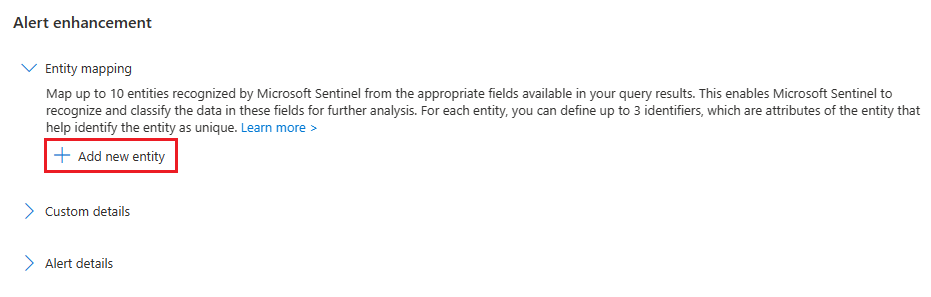
- Review the entities defined in the mapping. You can define up to ten entity mappings in a single analytics rule. You can also map more than one of the same type, such as two IP entities, one from a source IP address field and one from a destination IP address field Map data fields to Microsoft Sentinel entities | Microsoft Docs.
- For each entity, check the Identifier selected. Ensure you are using a strong identifier where possible. If you are using a weak identifier, consider whether combining multiple weak identifiers would produce a strong identifier Entities in Microsoft Sentinel.
- Repeat this process for the rule that generated the second alert.
If the two rules map the same real-world entity to different entity types, or if they use different weak identifiers for the same entity type, Microsoft Sentinel will not merge them. For example, one rule might map a user account using only the Name field, while another maps it using the UPN field. Without a common strong identifier, the system treats them as separate entities.
Resolving the separation
Once you have identified the mismatch, you need to update the entity mapping in the analytics rules. You must choose at least one required identifier for each entity mapping. If you don’t, a warning message will instruct you which identifiers are required Map data fields to Microsoft Sentinel entities | Microsoft Docs.
For best results, use strong identifiers whenever possible. Using multiple strong identifiers will enable greater correlation between data sources Map data fields to Microsoft Sentinel entities | Microsoft Docs. If you are mapping user accounts, synchronizing user account entities with Microsoft Entra ID may create a unifying directory, which will be able to merge user account entities Entities in Microsoft Sentinel.
After updating the entity mapping, save the rule. The changes will apply to new alerts generated by the rule. Existing alerts will not be automatically re-mapped. You may need to manually relate the existing alerts to the new incident if they are not automatically merged.
Verifying the fix
To verify that the entity mapping is working correctly, generate a test alert or wait for the next scheduled run of the rule. Check the entities tab in the incident details panel. If the mapping is correct, the entities from both alerts should be merged into a single entity, and the alerts should be related to the same incident Relate alerts to incidents in Microsoft Sentinel in the Azure portal.
If the alerts remain separate, check the entity timeline. The entity timeline, as featured in the new incident experience, presents all the entities in a particular incident investigation. When an entity in the list is selected, a miniature entity page is displayed in a side panel. You can use this to explore the entities’ timelines for their other alerts that are now eligible to be added to the incident Relate alerts to incidents in Microsoft Sentinel in the Azure portal.
If you still see separate entities, review the entity reference documentation to ensure you are using the correct identifiers for the entity type you are mapping Entities in Microsoft Sentinel. You can also view these entities’ identifiers and other relevant information in the entities reference Entities in Microsoft Sentinel.