
Build a migration inventory before selecting a migration method
Este artigo ainda não foi traduzido — está a ver a versão em inglês.
You cannot select the right migration method until you know what you are moving. A common mistake is choosing Azure Site Recovery, Azure Migrate, or lift-and-shift App Service based on a general preference rather than the actual characteristics of the on-premises workloads. Azure Migrate provides the inventory and assessment data required to make that decision evidence-based.
The first step is establishing a project that captures discovery metadata. Azure Migrate projects store the discovery, assessment, and migration metadata collected from your environment. Without this central repository, you are working with fragmented spreadsheets or manual estimates, which often miss dependencies or storage requirements.
Create the project scope
Before adding tools, you need a container for the assessment data. You must have Contributor or Owner permissions in the Azure subscription where the project will reside.
- In the Azure portal, search for Azure Migrate.
- Select Azure Migrate from the services list.
- In the Get started section, select Discover, assess and migrate.
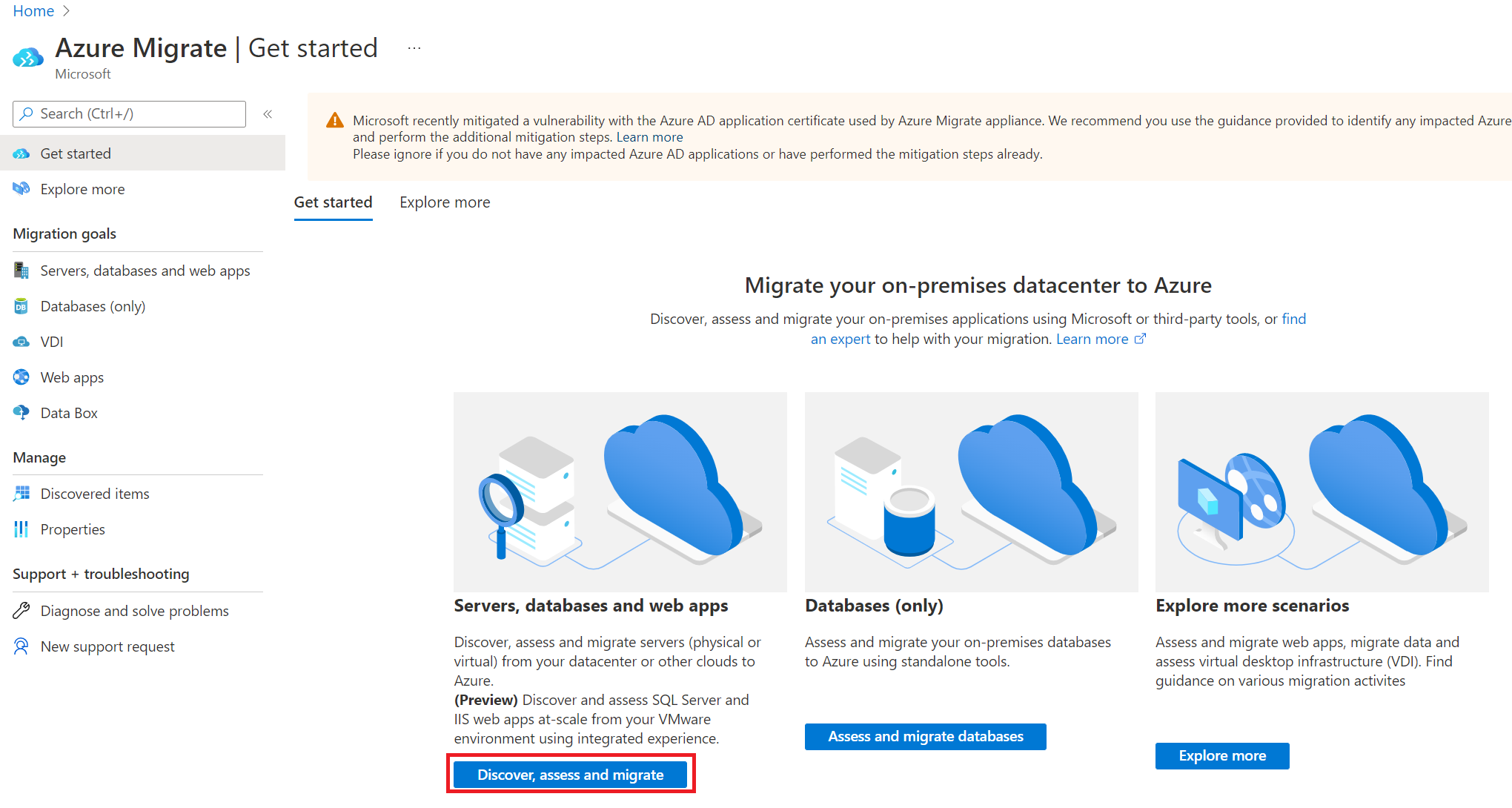
- Under Servers, databases and web apps, select Create project.
- Choose the Azure subscription and resource group. If you do not have a resource group, create one.
- Specify the project name and the geography. The geography determines where the metadata gathered from on-premises servers is stored. This does not restrict the target region for the migration itself.
- Select Create.
Wait for the project to deploy. This may take a few minutes. The project is now ready to receive discovery data.
Select the assessment scenario
Azure Migrate separates discovery by workload type. You must select the scenario that matches your primary migration goal. The available options include:
- Discover, assess and migrate: For servers (physical or virtual) from your datacenter or other clouds to Azure. This also includes discovering and assessing SQL Server from a VMware environment.
- Assess and migrate databases: For assessing on-premises SQL Server databases.
- Explore more > Web Apps: For assessing or migrating on-premises web apps.
- Explore more > Virtual Desktop Infrastructure: For assessing your virtual desktop infrastructure.
Selecting the correct scenario ensures that the appropriate assessment tools are added to the project. If you select Discover, assess and migrate, the Azure Migrate Discovery and assessment tool is automatically added for Windows, Linux, and SQL Server.
Add assessment tools
If your project was not created with the automatic tool addition, or if you need to assess additional workload types, you must manually add the tools.
- In the Azure Migrate project, click Overview.
- Navigate to the relevant section (e.g., Windows, Linux and SQL Server > Assessment tools).
- Select Add more tools or Click here if no tools are present.
- In the Add tools blade, select the tools you want to add and then select Add tool.
For database assessments, follow the same process under the Databases section. For web apps, select the Web App Assessment tool under the Web Apps section.
Discover and assess
Once the tools are added, you can begin discovering on-premises assets. The discovery process involves installing agents or appliances depending on the source environment (VMware, Hyper-V, or physical servers). The assessment tool then collects CPU, memory, disk, and network usage data over a period of time. This data is critical for sizing Azure resources accurately.
The assessment results provide recommendations for Azure VM sizes, storage types, and network configurations. They also highlight dependencies between servers, which is essential for planning migration waves. Without this data, you risk over-provisioning (increasing costs) or under-provisioning (causing performance issues).
Verify the inventory
Before proceeding to migration, verify that the inventory is complete. Check the Discovered assets list in the Azure Migrate project. Ensure that all critical servers are present and that the assessment data is up to date. If any servers are missing, investigate why the discovery agent failed to report data.
Use the assessment recommendations to select the appropriate migration method. For example, if the assessment shows that a workload is a simple web application with no complex dependencies, you might consider App Service. If it is a complex multi-tier application with specific OS requirements, Azure VMs with Site Recovery might be more appropriate. The assessment data removes the guesswork from this decision.
Do not proceed to migration until the inventory is verified and the assessment recommendations have been reviewed with the application owners. This ensures that the migration plan aligns with business requirements and technical constraints.
References for Build a migration inventory before selecting a migration method: Add assessment tools in Azure Migrate, Create and manage projects.